How I Automated My Blog Sitemap in Next.js (and You Can Too)
Hamid Sabri / October 27, 2025
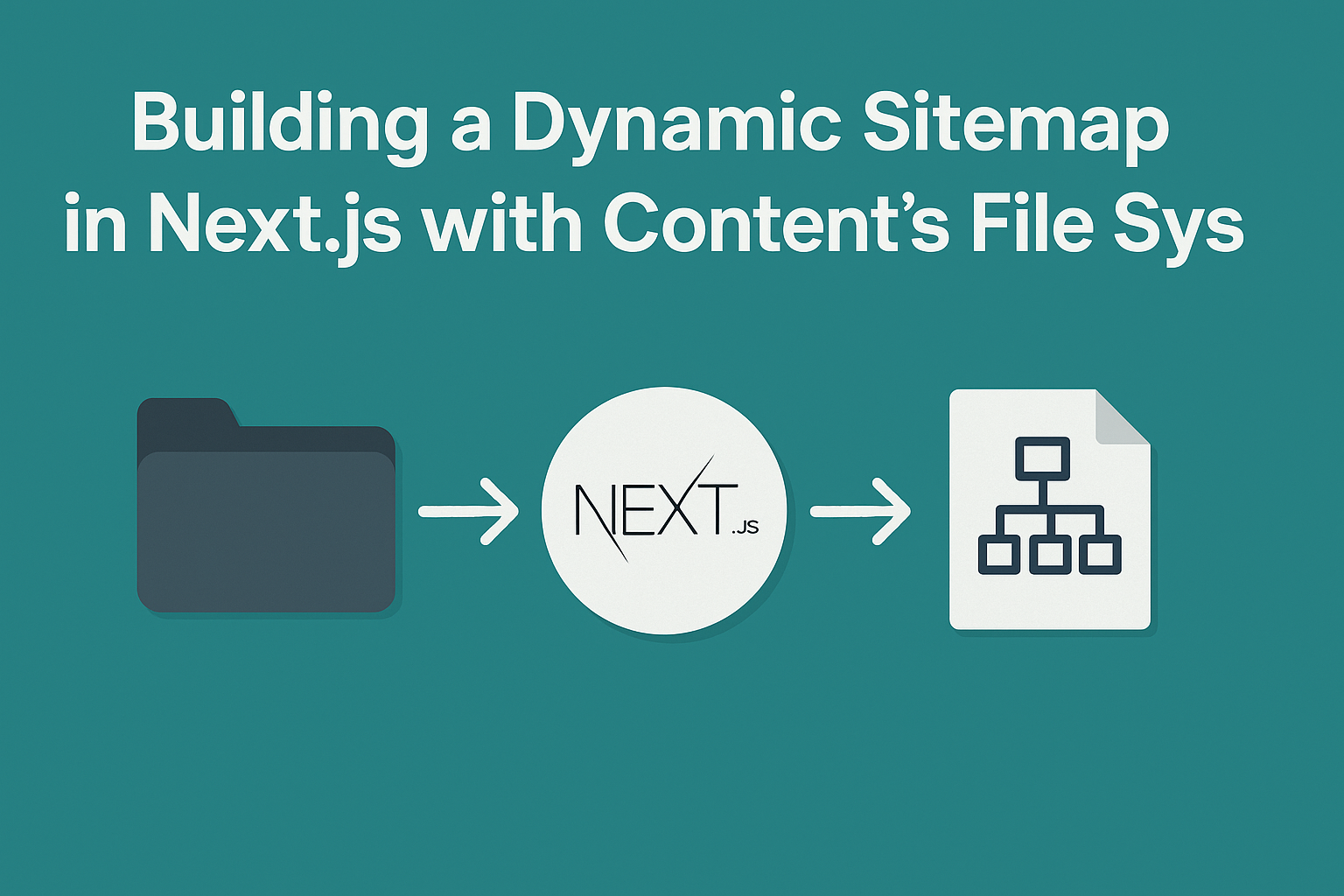
If you’ve ever shipped a new blog post, pushed to production, and then realized your sitemap didn’t update - you’ll understand my frustration.
I recently went through that while building my own blog. Each post lives in the /content folder as an .mdx file, and every time I published something new, I had to manually add it to the sitemap. It wasn’t hard, but it was annoying and prone to forgetting.
So, I automated it.
This post walks you through exactly how I did it: a simple Next.js sitemap that updates automatically whenever you add a new MDX file. No external dependencies, no plugins, just clean JavaScript.
Why I Wanted to Automate the Sitemap
Google relies on your sitemap to understand what’s new and what’s updated on your website. I wanted:
- ✅ My new posts and projects to be automatically indexed
- ✅ No manual edits every time I hit publish
- ✅ SEO hygiene that just takes care of itself
And since my site already builds dynamically with MDX, I realized: why not let Next.js do the same for the sitemap?
The Setup
Here’s my site structure:
/content
 ├─ posts/
 │   ├─ n8n-monitoring-grafana.mdx
 │   ├─ low-stock-alerts.mdx
 │   └─ responsive-navbar.mdx
 ├─ projects/
 │   ├─ roots-the-brand.mdx
 │   ├─ bellroy-section.mdx
 │   └─ whatsapp_order_confirmation.mdx
/app
 └─ sitemap.js
Every MDX file automatically becomes a live page - either a post or a project. The goal: have all of them instantly show up in sitemap.xml without touching the file manually.
Step 1 - Writing the Dynamic Sitemap Function
Here’s the core of the automation - the entire /app/sitemap.js file:
import fs from "fs";
import path from "path";

export default function sitemap() {
  const baseUrl = "https://sabrihamid.com";
  const now = new Date();

  // Helper to scan /content subfolders
  const generateUrls = (subdir, priority) => {
    const dirPath = path.join(process.cwd(), "content", subdir);
    if (!fs.existsSync(dirPath)) return [];

    return fs
      .readdirSync(dirPath)
      .filter((file) => file.endsWith(".mdx") && !file.startsWith("_draft"))
      .map((file) => {
        const slug = file.replace(".mdx", "");
        return {
          url: `${baseUrl}/${subdir}/${slug}`,
          lastModified: now,
          changeFrequency: "weekly",
          priority,
        };
      });
  };

  const posts = generateUrls("posts", 0.9);
  const projects = generateUrls("projects", 0.8);

  const staticPages = [
    {
      url: `${baseUrl}`,
      lastModified: now,
      changeFrequency: "monthly",
      priority: 1,
    },
    {
      url: `${baseUrl}/contact`,
      lastModified: now,
      changeFrequency: "monthly",
      priority: 0.5,
    },
    {
      url: `${baseUrl}/posts`,
      lastModified: now,
      changeFrequency: "weekly",
      priority: 1,
    },
    {
      url: `${baseUrl}/projects`,
      lastModified: now,
      changeFrequency: "weekly",
      priority: 1,
    },
  ];

  return [...staticPages, ...posts, ...projects];
}
I love how simple this is. No need for next-sitemap or any third-party package - just Node’s fs and path modules.
Step 2 - How It Works
- Reads all
.mdxfiles from/content/postsand/content/projects - Builds URLs automatically based on filenames
- Skips drafts (files starting with
_draft) - Outputs a full sitemap consumed by Next.js at
/sitemap.xml
When you deploy or rebuild your site, the sitemap refreshes automatically. Every new post or project you push gets indexed.
Step 3 - Testing It
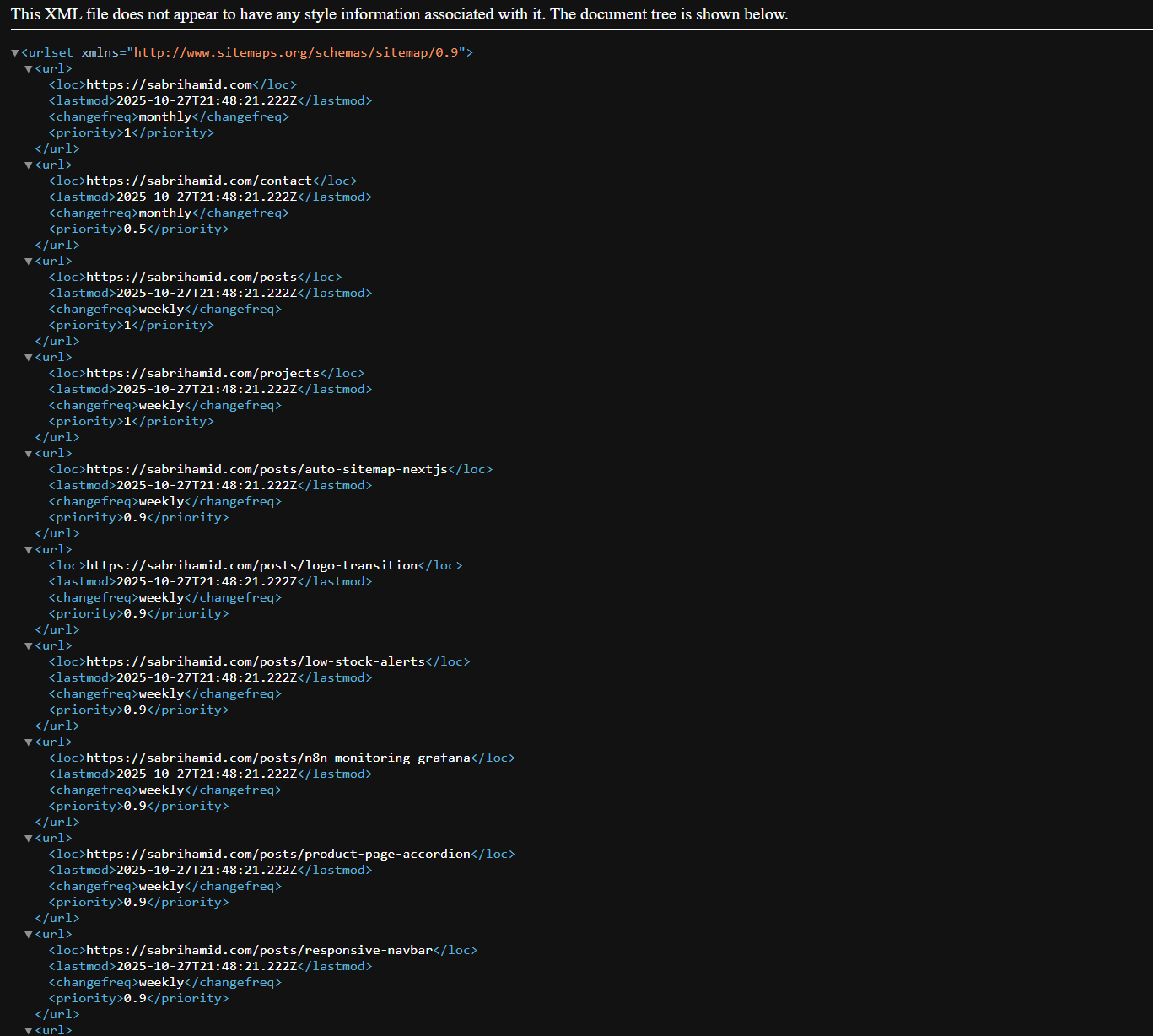
Run your app and open:
http://localhost:3000/sitemap.xml
You’ll instantly see an up-to-date XML sitemap - no configuration needed.
Optional: Show Real lastModified Dates
You can go one step further by replacing now with each file’s actual last modified date:
const stats = fs.statSync(path.join(dirPath, file));
const lastModified = stats.mtime;
That way, Google knows when each page was last updated - great for SEO freshness.
Step 4 - Submit It to Google
Once deployed:
- Go to Google Search Console → Index → Sitemaps
- Enter your sitemap URL:
https://sabrihamid.com/sitemap.xml - Click Submit ✅
Google will now automatically pick up every new post or project you create.
Final Thoughts
This one small automation makes my publishing workflow feel complete. Now, when I hit “publish,” I know my content is live, discoverable, and indexed - automatically.
It’s one of those behind-the-scenes wins that make your site feel like a real product.
✅ Works with any MDX-based blog
✅ No extra dependencies
✅ Keeps SEO fresh automatically
✅ Excludes drafts cleanly
I use this method on my own site - and I can’t imagine going back.